Keeping track of the health of Power Apps and Power Automate flows has often meant digging through dashboards, filtering logs, and reacting only after something has already gone wrong. With the introduction of Power Platform Alerts (currently in preview), Microsoft is changing this dynamic — administrators now have a built-in way to detect issues automatically, before they reach end users.
This new feature shifts monitoring from a reactive, manual process to a proactive system that surfaces problems as soon as they happen. Whether you’re overseeing a single business-critical app or managing dozens of environments across an organization, Power Platform Alerts offer a smarter, more efficient way to stay ahead of failures.
What are Power Platform Alerts?
Power Platform Alerts are admin-configured rules that monitor apps and flows for specific metrics or failures. When a condition is met — for example, a flow running for too long or an app exceeding a failure threshold — the system automatically sends a notification email.
Alerts work across:
- Power Apps (Canvas & Model-Driven)
- Power Automate (Cloud & Desktop flows)
Each alert monitors a selected metric, compares it with your defined threshold, and fires an email if the condition is triggered. Alerts currently aggregate data over a 24-hour window, providing a daily pulse on environment health.
Step-by-step: how to set alerts
Before starting, there are a few prerequisites to pay attention to:
- You must be a tenant administrator or an environment administrator to access alerts.
- Alerts can only be placed on a managed environment.
- You must be using the new and improved Power Platform Admin Center.
After verifying these points, we’re ready to begin setting up alerts. This is done through the Power Platform Admin Center, under Monitor → Alerts.
Creating an alert involves:
- Selecting the product — Power Apps or Power Automate.
- Choosing the product type — e.g., Canvas Apps, Model-Driven Apps, Cloud Flows, or Desktop Flows.
- Defining the scope — currently limited to the specific environment.
- Choosing a metric — such as flow failures, flow duration, or app errors. You can see the full list of metrics for Power Apps here and for Power Automate here.
- Setting the threshold — using operators like equals, greater than, or less than.
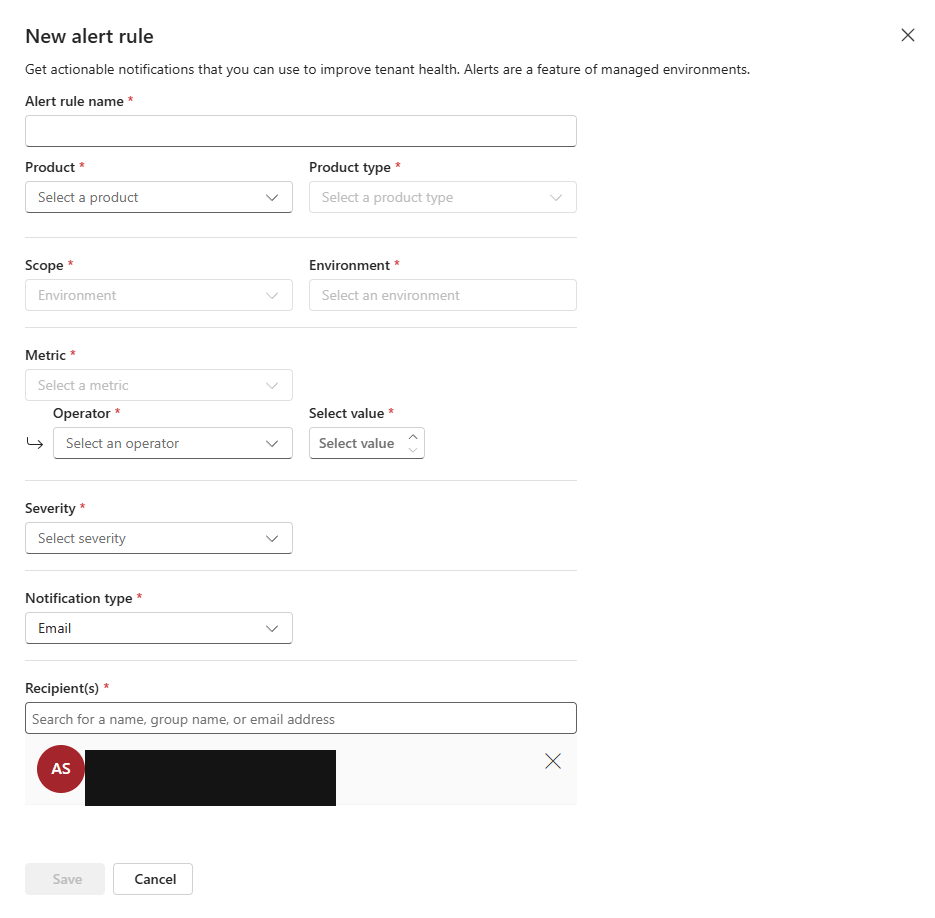
Once created, the alert actively monitors the environment and notifies you when conditions are met.
Scenario 1: Power Apps – App Open Success Rate (Model-Driven App)
This scenario demonstrates the configuration and validation of a Power Platform alert based on the App Open Success Rate metric for a Model-Driven App. The alert is triggered when the application is successfully opened, allowing administrators to verify alert behaviour and notification delivery. This approach supports proactive monitoring and governance of application availability within the environment.
Step 1: Creating and configuring the alert rule
Before creating the alert rule, it’s necessary to ensure the application has accumulated sufficient usage data, as Power Platform metrics require a minimum observation period to become available (24h).
Once the metric became available, a new alert rule was created for Power Apps – Model-Driven App within the selected environment. The alert was configured using the App Open Success Rate metric, with the condition defined as Is Over 0 for testing purposes. The alert severity was set to High, and email notifications were enabled for the designated recipient.
In a real production scenario, this metric would likely be monitored using a threshold based on service expectations (e.g., alerting when the success rate falls below 100%) to detect availability degradation.
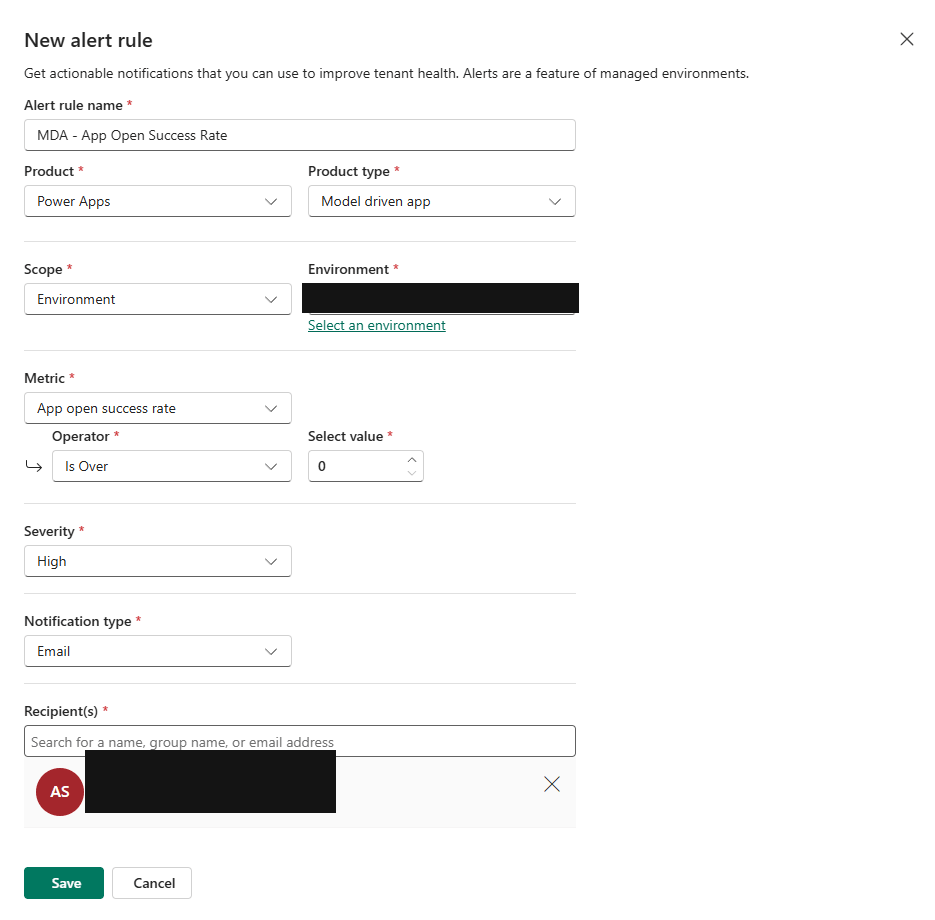
Step 2: Receiving the alert notification
After the alert condition is met, Power Platform automatically sends an email notification to the configured recipient. The email includes detailed information about the alert, such as the environment, alert identifier, timestamp, and a direct link to the triggered alert in the Power Platform Admin Center, enabling immediate analysis and response.
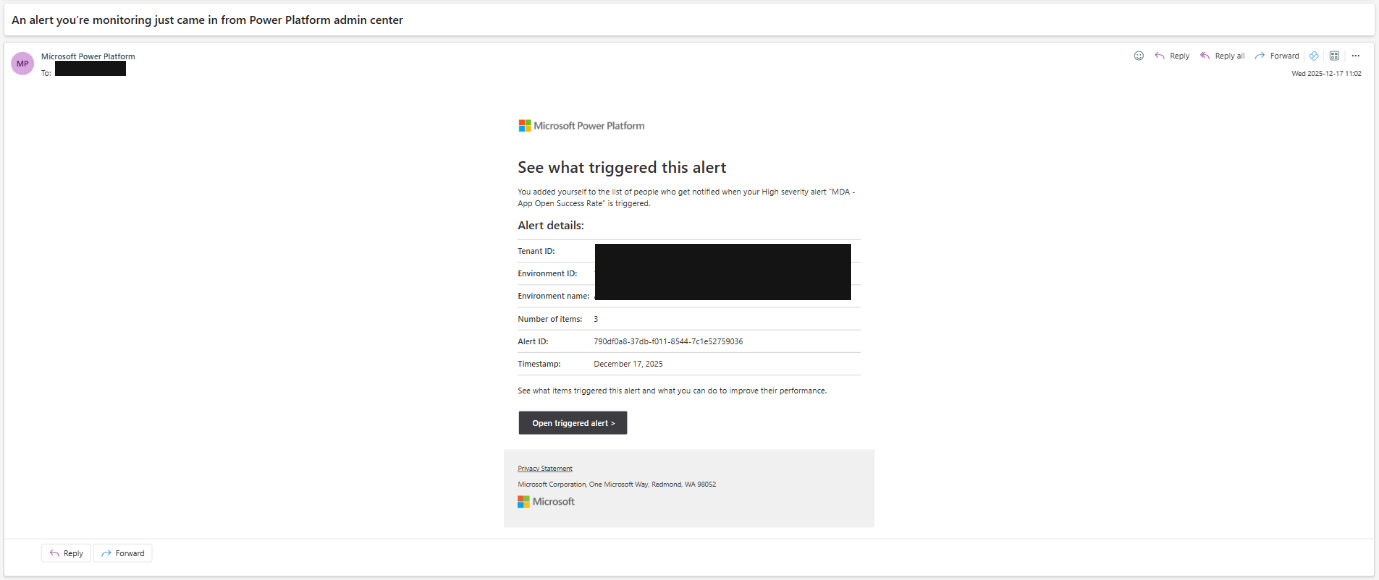
Step 3: Accessing the triggered alert from the email notification
After receiving the email notification, the administrator clicks the “Open triggered alert” button included in the message. This redirects to the Power Platform Admin Center, opening the detailed view of the triggered alert.
This step lets the administrator directly validate the alert execution, confirming its severity, scope, affected applications, and the exact time it was triggered. The redirection from email to alert details ensures a seamless investigation flow and enables quick analysis without manual navigation within the admin portal.
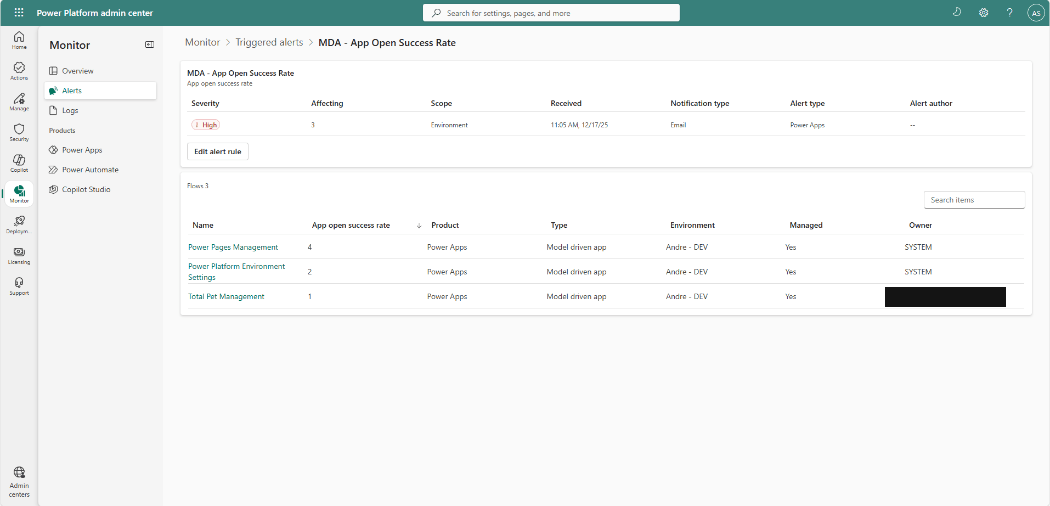
Step 4: Drilling down into the affected application metrics
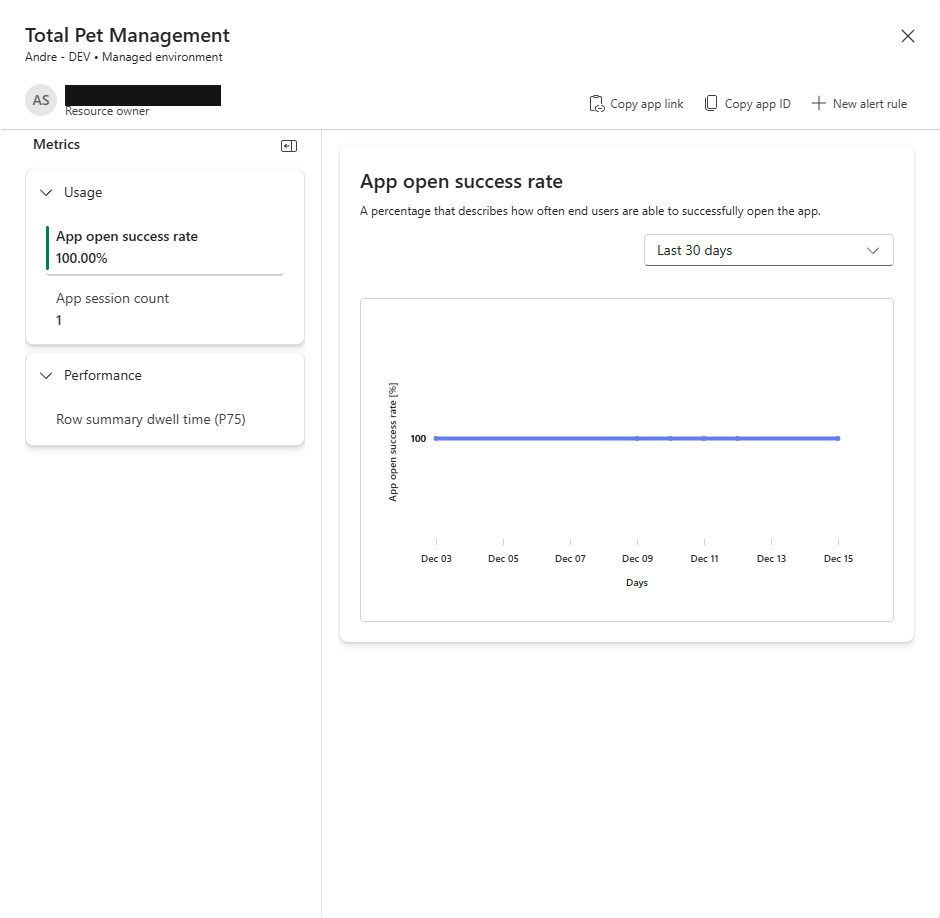
After being redirected to the triggered alert details, the administrator selects one of the affected Model-Driven Apps listed in the alert view. Clicking on the application opens the detailed monitoring page for that specific app.
This step provides a deeper analysis of the alert impact, allowing the administrator to review usage metrics such as the App Open Success Rate and session data. This drill-down capability supports identifying patterns or anomalies related to the alert and facilitates informed troubleshooting and decision-making.
This scenario demonstrates how Power Platform Alerts can be used to monitor application usage metrics and provide timely notifications to administrators. By combining alert rules, email notifications, and direct access to detailed metrics, the platform enables effective visibility into application behaviour and supports proactive monitoring and governance.
Scenario 2: Power Automate – Run Count (Cloud flow)
This scenario demonstrates the monitoring of Cloud Flow executions using Power Platform Alerts based on the Run Count metric. The alert is used to track flow activity and ensure visibility over automated process executions within the environment, supporting proactive monitoring and operational governance of Power Automate flows.
Step 1: Creating and configuring the alert rule
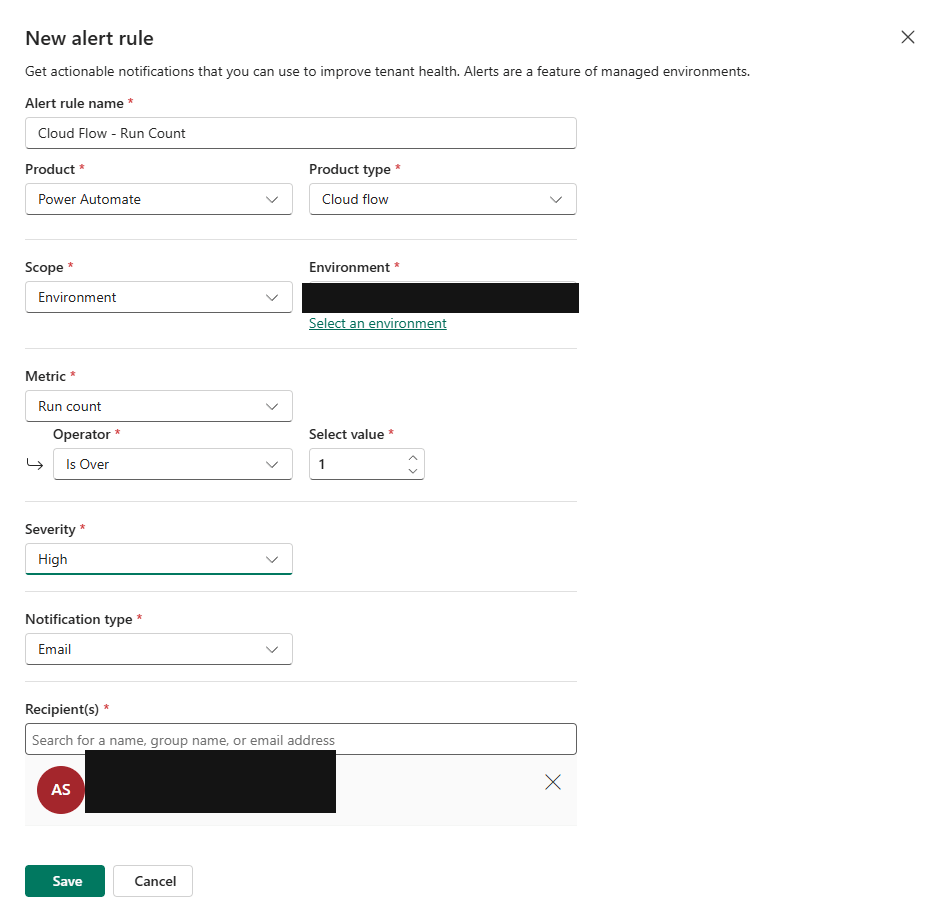
The scenario begins with the configuration of a new alert rule for a Cloud Flow in the Power Platform Admin Center. The alert is defined using the Run Count metric, allowing administrators to monitor how many times the flow is executed within the selected environment.
The rule is configured with the condition Is Over 1, meaning the alert triggers when the Cloud Flow executes more than once, resulting in an email notification to the specified recipient. This setup enables proactive monitoring of automated process executions and ensures visibility into flow activity.
In a real production scenario, the threshold value would typically be higher to detect abnormal execution patterns — such as continuous retries or infinite loop behaviour — rather than triggering an alert for normal operational runs.
Step 2: Receiving the alert notification
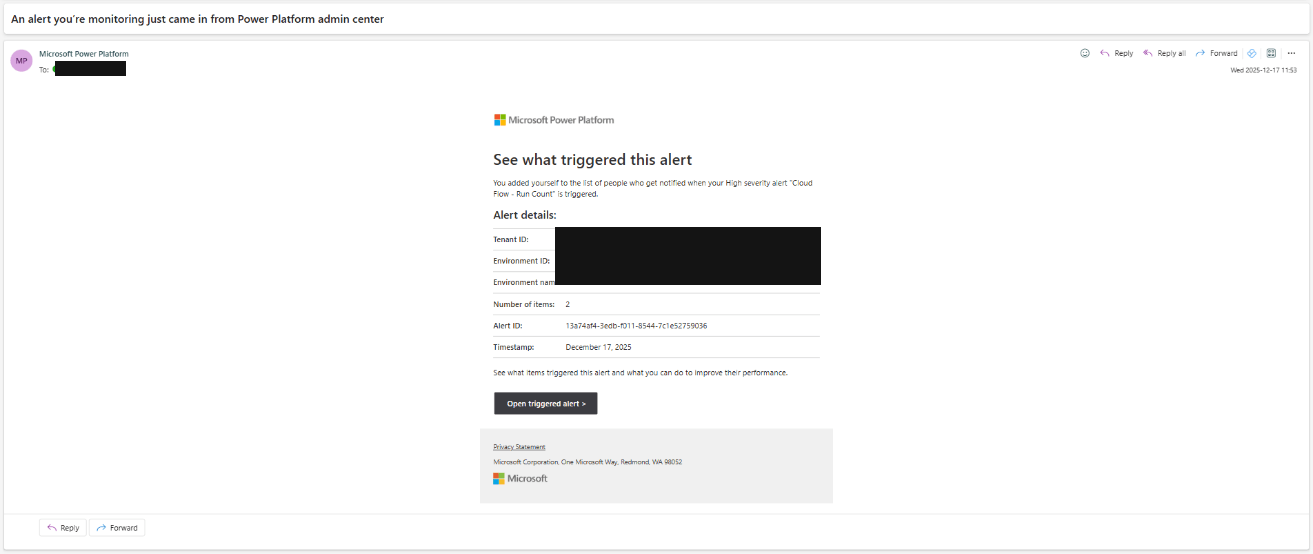
Once the flow execution count exceeds the configured threshold, the alert rule triggers and an automated email notification is sent to the designated recipient. The email contains key information about the alert, including the environment details, timestamp, and alert identifier, ensuring traceability of the event.
This notification confirms that the monitoring rule executed successfully and provides a direct link to the triggered alert in the Power Platform Admin Center, enabling the administrator to continue the investigation seamlessly.
Step 3: Accessing the triggered alert from the email notification
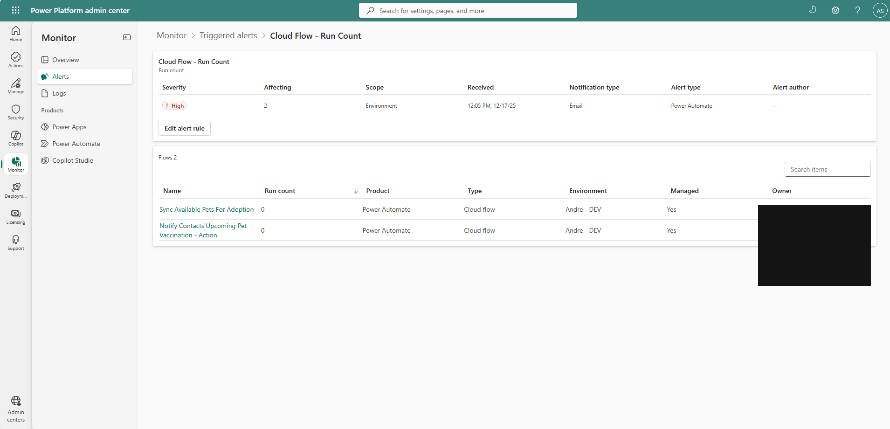
After receiving the notification email, the administrator selects the “Open triggered alert” button, which redirects to the Power Platform Admin Center. The alert details page is automatically displayed, showing the affected cloud flows, the run count, severity level, and the moment the alert was received.
This confirms that the alert was successfully registered by the platform and enables further examination of the flow executions directly within the monitoring interface.
Step 4: Drilling down into the affected application metrics
After accessing the triggered alert, the administrator selects one of the affected Cloud Flows listed in the alert details. This opens the flow-specific monitoring view, where detailed usage metrics are presented, including the Cloud Flow Run Count over the selected time period.
This drill-down step allows the administrator to analyze execution patterns for the flow, validate whether the alert corresponds to real activity, and determine whether further investigation or corrective action is required.
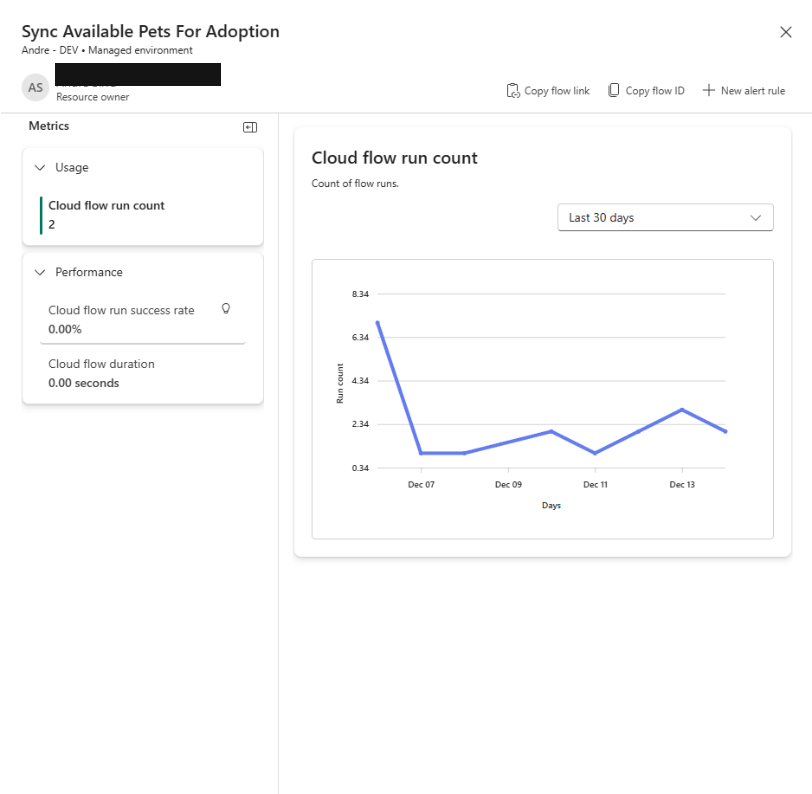
This scenario validates that Power Platform Alerts can effectively monitor Cloud Flow execution activity through the Run Count metric. By combining alert rules, email notifications, and metric drill-down, the platform enables administrators to track automated processes and maintain proactive oversight of flow execution behaviour within the environment.
What’s missing?
Monitor Alerts is a powerful addition — but it also has constraints, given its preview status:
- It uses 24-hour aggregated metrics. This means alerts are not real-time; transient issues may go unnoticed if they don’t persist across the aggregation window.
- Predefined alerts (provided by Microsoft) cannot currently be edited or disabled.
- Notification channels are limited: at present, alerts send email notifications or remain visible in the Admin Center.
Despite these limitations, Monitor Alerts fills a crucial gap — providing accessible monitoring to citizen-developer–driven Power Platform environments, without the overhead of enterprise observability stacks.
Conclusion – why this changes the game
Power Platform Monitor Alerts represent a meaningful shift in how teams maintain and support their apps and automations. Instead of reacting to issues after they’ve already disrupted users or processes, administrators can now rely on built-in, customizable alerts that surface problems as soon as the platform detects them.
This capability elevates Power Platform from simply enabling rapid solution development to supporting ongoing operational excellence. For organizations running business-critical workloads across multiple environments, Monitor Alerts add a layer of reliability that was previously difficult to achieve without custom monitoring setups.
By combining automated notifications, environment-level insights, and actionable recommendations, Monitor Alerts help ensure that your Power Apps and Power Automate flows don’t just get delivered quickly — they continue running smoothly, consistently, and predictably.